
Today
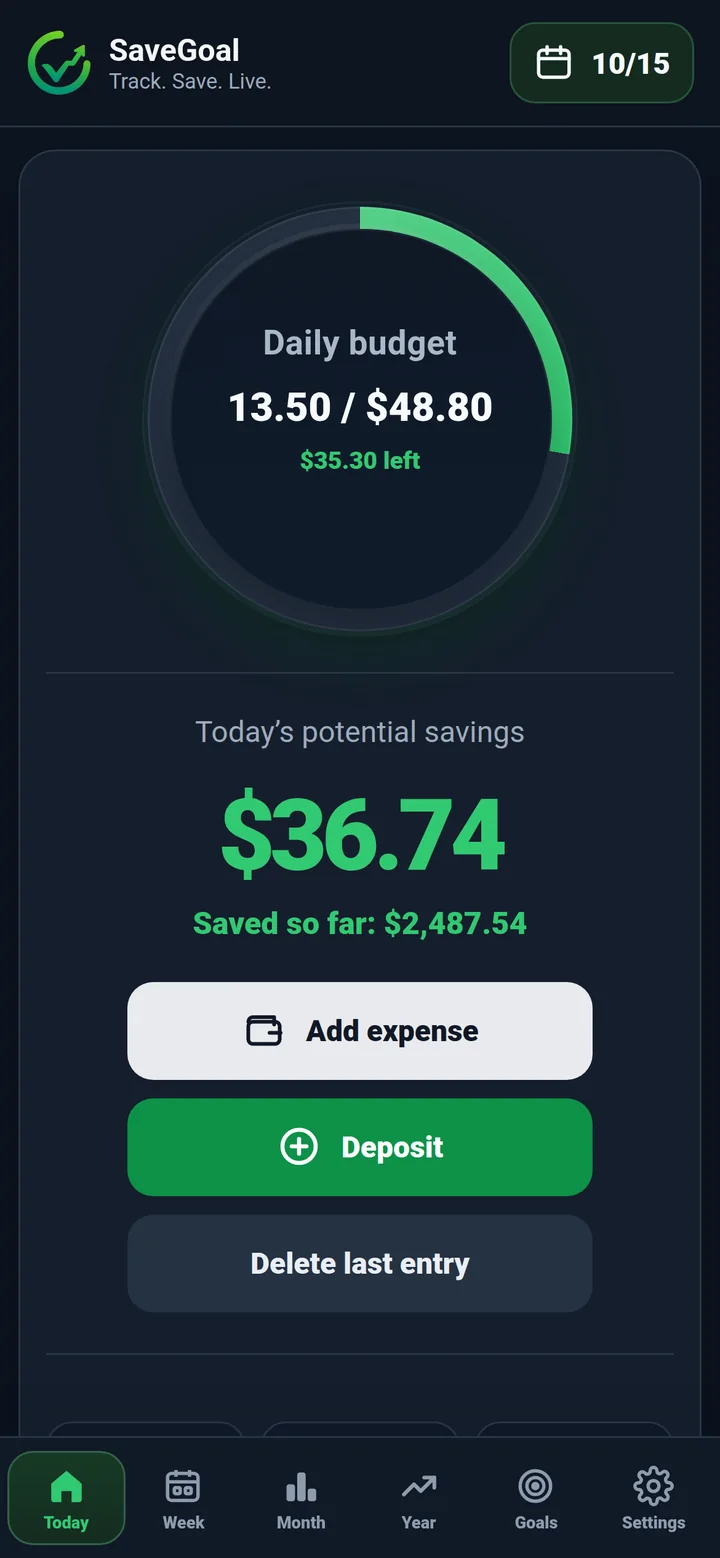
Daily budget with ring
The ring shows at a glance how much is still available today, what you have already spent and what you are saving.
SaveGoal shows you every day how much you can still spend today and how much you save along the way. Whatever is left goes toward your savings goals – clear, motivating and without an account.
Available in 18 languages and 25 currenciesFits your everyday life – anywhere.
Instead of being surprised at the end of the month, you see where you stand every day. That makes small decisions easier – and big goals reachable.
The ring shows at a glance how much is still available today, what you have already spent and what you are saving.
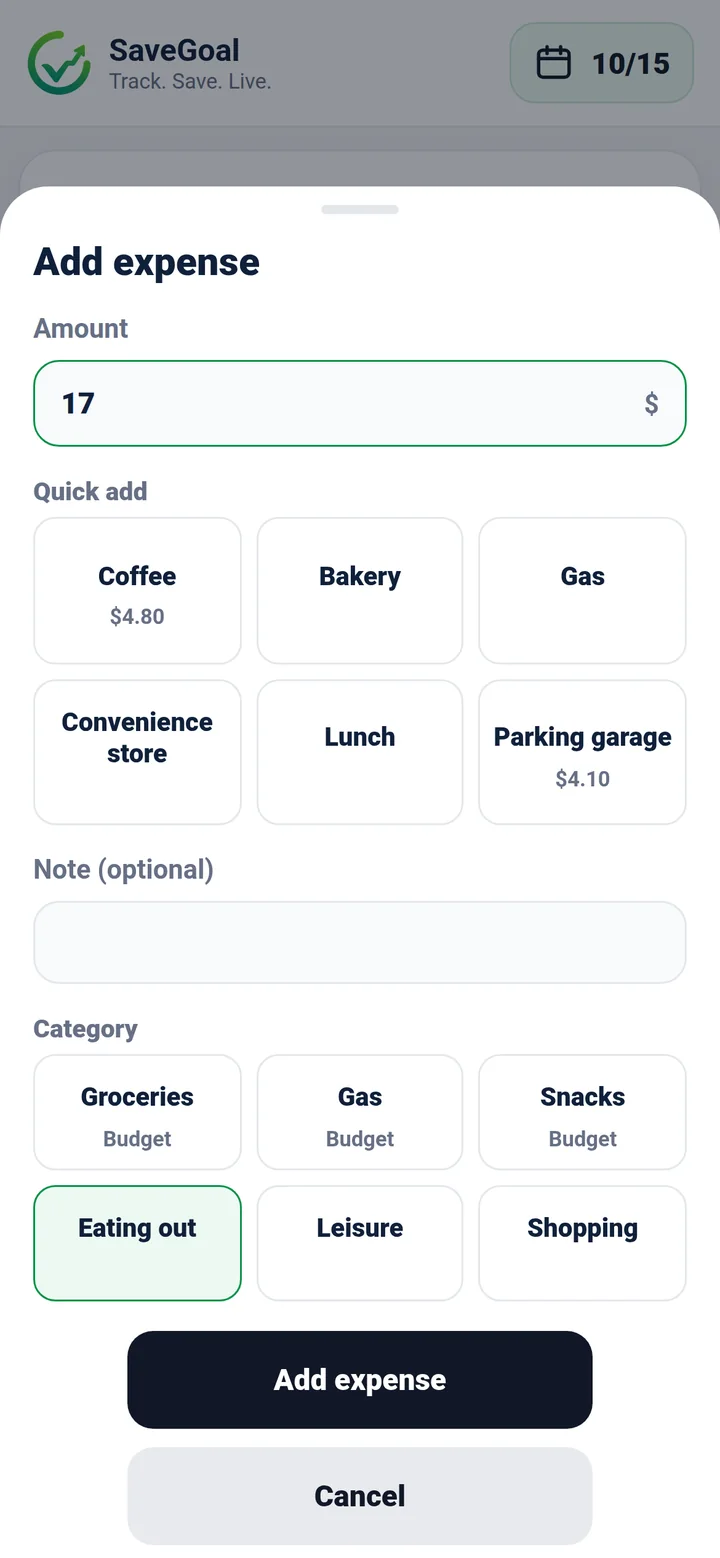
Enter the amount, pick a category, done. Quick add entries for things you buy often save even more steps. Forgot something? Just add it later.
Whatever is left of your budget at the end of the day automatically goes toward your active savings goal. Gifts of money or refunds can be deposited directly.
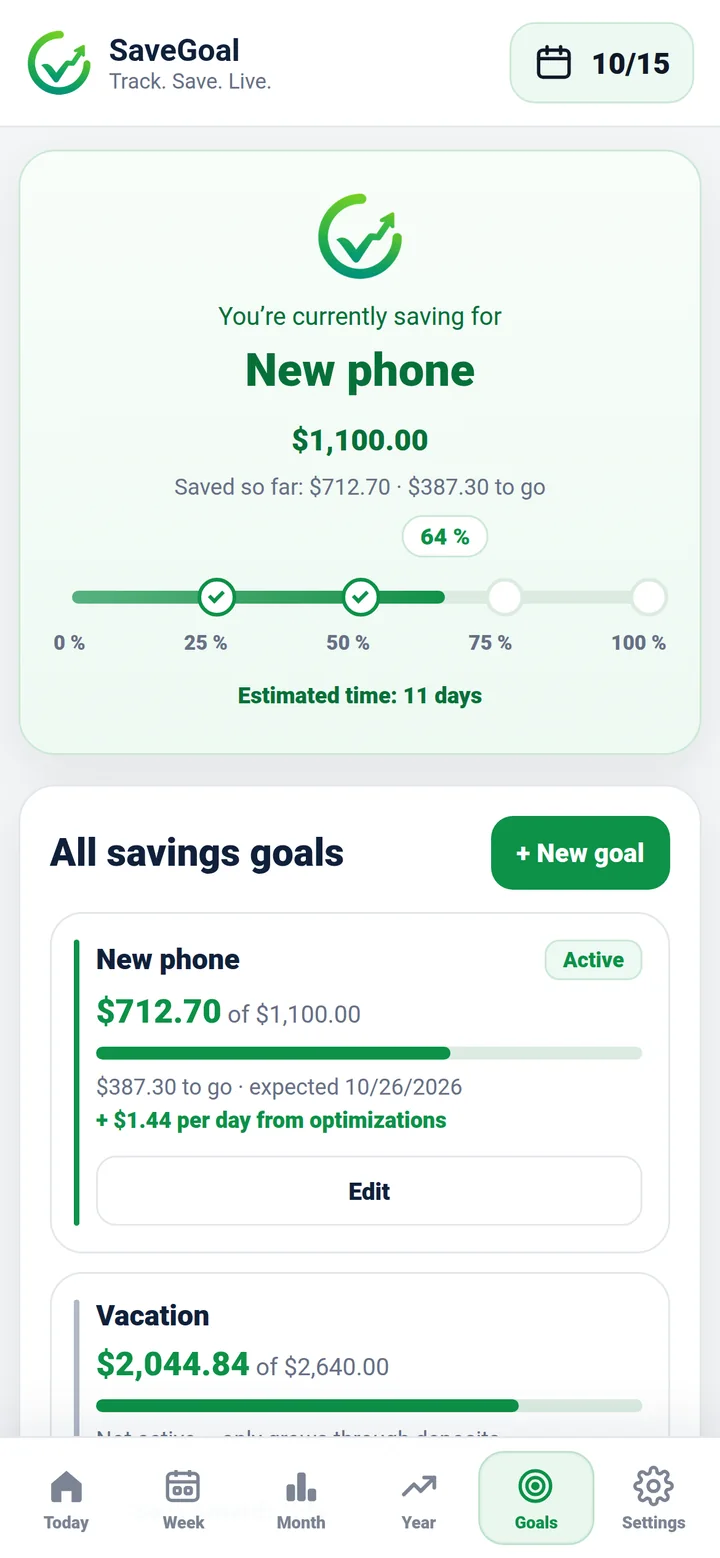
A vacation, a new phone or a financial cushion: create several savings goals and see at any time how far you have come and when you will probably reach your goal.
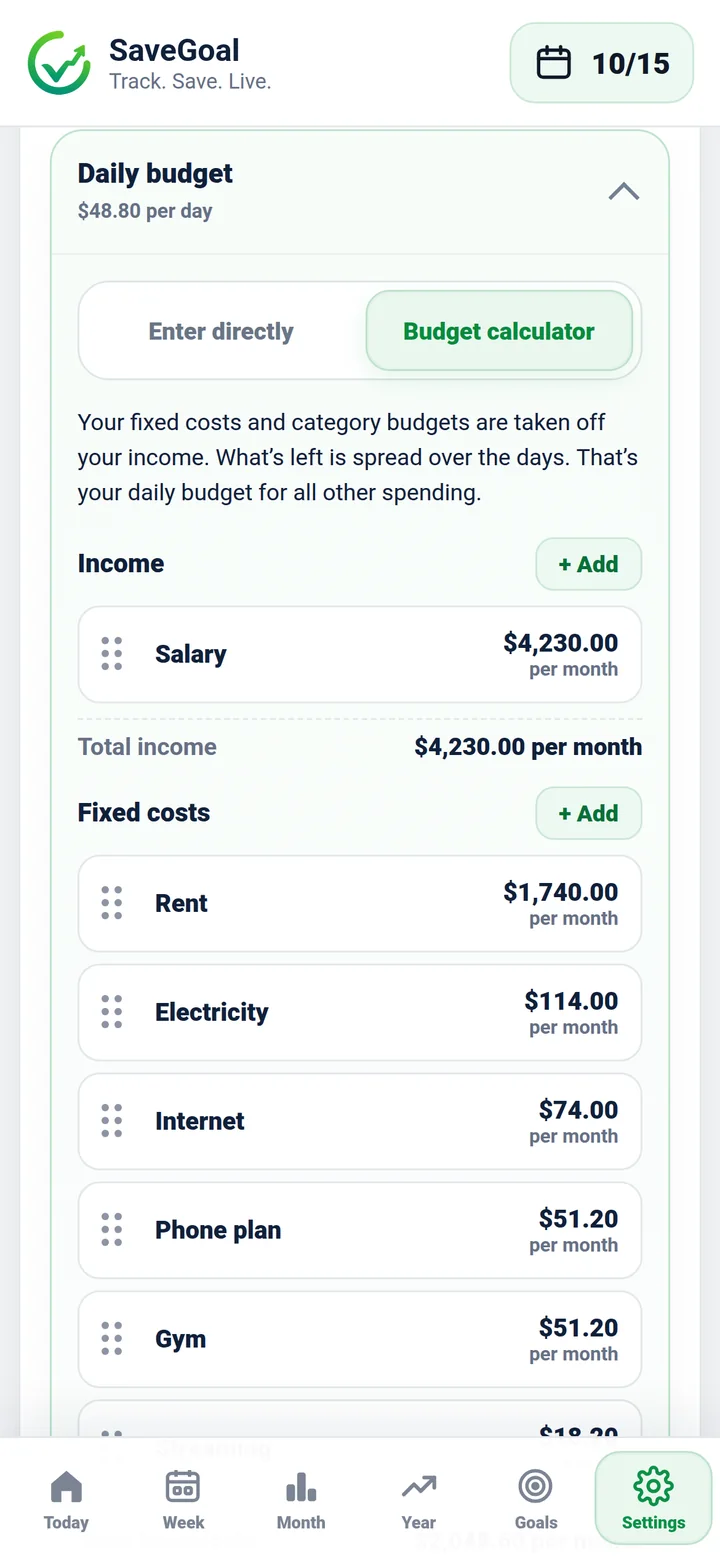
The budget calculator works out your daily budget from your income, fixed costs and category budgets. So you know how much you can really spend each day.
Weekly groceries, gas or a haircut don't fit well into a daily budget. For these, you set up a monthly category budget. A big shopping trip then won't turn your day red, and whatever is left at the end of the month counts as savings.
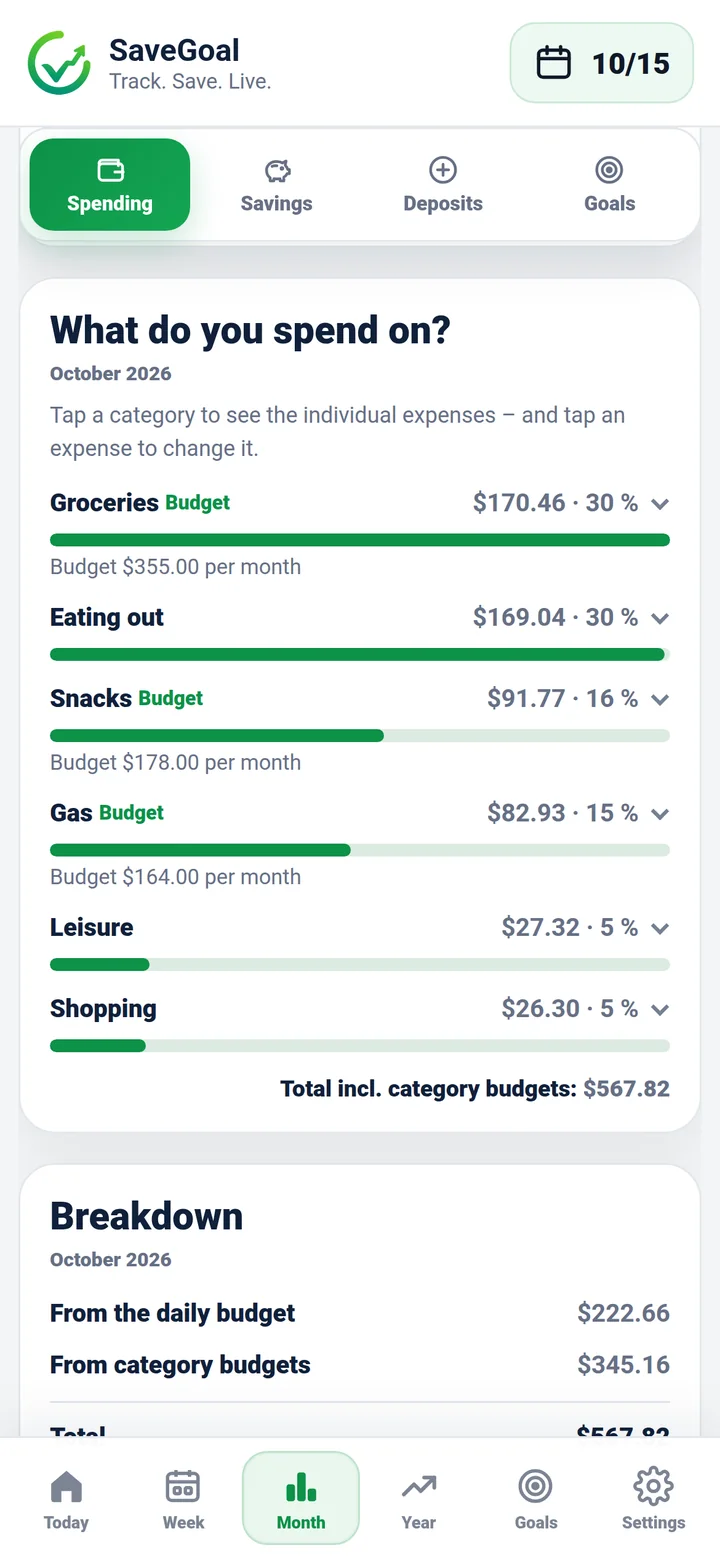
Week, month and year views show you with charts and tables how your spending and savings develop. The category breakdown shows where most of your money goes.
A cheaper subscription, a new phone plan, a cancelled membership: whatever you save permanently counts in SaveGoal every single day.
Enter permanent savings once. SaveGoal spreads the saving across every day and adds it to your savings goal or your daily budget, whichever you prefer.
If you like, enter roughly how much you used to spend. You’ll see how much less you spend today, and orange shows days over budget but still below what you used to spend.
Light and dark mode are included. If you like, SaveGoal simply follows your phone's setting – easy on the eyes, even when you quickly add something late in the evening.
SaveGoal needs no account and no bank connection. Everything you enter stays on your phone – nothing ends up in a cloud.
Use SaveGoal in your language and with the currency that fits your everyday life.


Amounts, savings and goals are displayed in your selected currency.
SaveGoal has a backstory. First I built SmokeGoal, an app that helped me cut down my smoking significantly, step by step. Surprisingly, the deciding factor wasn't my health – it was money. Only once I could see every day how much each cigarette I didn't smoke was saving me did things really start to change.
At some point the question came up: why only cigarettes? The same principle works for all spending. A clear budget for every day, a quick look at what's left for today, and a goal your savings go toward. That's how SaveGoal came about – with the same design as SmokeGoal, so the two apps belong together.
Just like with SmokeGoal, your numbers stay on your phone, with no account and no bank connection. And don't be too hard on yourself if a day turns red. Every day within budget brings you a little closer to your goal.
Andreas
Back to topNo. SaveGoal works without signing in and without a bank connection. You enter your expenses yourself, and everything stays on your phone.
The core features are free. Premium unlocks additional insights and features, such as the week, month and year views, savings goals and the budget calculator. You can try Premium free for 7 days.
Go to Settings → Backup and tap “Create backup” to save a file. Copy it to your new phone and restore it there under Settings → Backup with “Restore backup”. Keep the file somewhere safe, as it contains your entries.
Sign in to the Play Store with the same Google account you used for the purchase. Then tap “Restore purchases” in SaveGoal under Settings → Premium status.
Subscriptions are managed by Google Play. Open the Play Store app, tap your profile picture and then “Payments & subscriptions” → “Subscriptions”. Important: uninstalling SaveGoal does not cancel your subscription automatically.
Your entries are stored only on your phone. You delete them by clearing SaveGoal's app data in your Android settings or by uninstalling the app. In the app, you can also start over under Settings → “Reset”: this deletes your entries, budgets, savings goals and settings. Language, appearance and font are kept, as are the trial period and any Premium access you have purchased. You delete backup files and exported tables yourself. How to have purchase and subscription data deleted by our service provider is explained in the privacy policy.
Email us at info@save-goal.com. In the app, you can also create a technical error report under Settings → Premium status. You see the full report before sending it, and it contains no expenses, budgets or savings goals.
No. SaveGoal is a personal tool for tracking your spending and saving money. The app doesn't provide financial, investment, tax or legal advice. If you're in financial difficulty or have questions about debt, please contact a debt counseling or consumer advice service.